
For entrepreneurs who want to use SEF from Excel, without manual retyping
This solution is ideal if you need a SEF Excel (SEF invoice) tool for everyday invoicing in Excel and a reliable SEF invoice solution for Excel without retyping data manually.
This is more than a SEF add-in: it also includes an invoice template (SEF invoice) that is easy to adapt to your workflow, printing and PDF export, and a script for aggregate totals across all the invoices you create.
Note: the add-in runs only in the desktop Excel application (Microsoft Excel for Windows) and will not work in Excel on the web. It also runs on Windows 7 if the Office installation is compatible.
SEF Excel for invoices in Excel
What it solves
Less manual work
The data is read from the cells and columns you already use in Excel, without constantly moving between systems.
A faster SEF process
One click sends the invoice, returns the SEF number, checks the status and downloads the XML or PDF when you need it.
Control and compliance
Mapping settings and the update period keep the tool aligned with changes on the SEF side.
Key features
The list follows the ribbon interface and the user manual as they are today.
SEF operations
- Send an invoice (UBL XML from the active sheet)
- Check an invoice by its SEF number
- Download XML and download PDF
- Cancel an invoice and issue a credit note
- Show invoice changes by date
Comes with a built-in invoice template
- A ready-to-use invoice template,
Invoice.xltm - The template is easy to change and adapt to your needs
- Export the page to PDF
- Print the invoice directly from Excel
- Add the NBS IPS QR code for payment
- Apply the local decimal separator
- The SEF number is written into the designated cell after a successful send
Settings and customisation
- Mapping
Cells__*,Rows__*andColumns__*onto your own Excel layout - A built-in editor for mapping cells between your Excel template and the SEF elements
- Constant XML values through
Values__* - SEFProcessor API endpoint and key
- Paths for PDF export and opening
Licensing and extra automation
- The licence is tied to one computer (1 activation)
- Additional computers are charged per installation
- A script that shows the totals across all invoices created
- Maintenance can be extended after the period expires
Supported today
- A standard outgoing invoice with multiple line items
- VAT per line item (0%, 10%, 20%) with automatic grouping into
TaxSubtotal - VAT-exempt invoices (0%) with the matching category and reason for exemption
- Attachments per line item: URL and PDF
- Invoices to the public sector through JBKJS, when that field is filled in
- Advance payments (
PrepaidAmount) with automatic calculation ofPayableAmount - Sending to SEF, checking the status and downloading XML or PDF
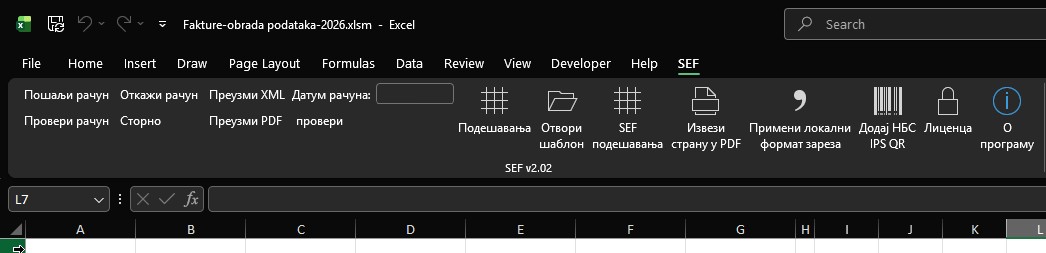
How the add-in looks in Excel
The ribbon group after installation:
How the workflow looks
1. Installation
Download the add-in, unblock the file, install the version that matches your Office (32-bit or 64-bit) and enable the add-in under COM Add-ins.
2. Licence activation
The licence key arrives at the email address you gave when ordering. Enter that address and the key in the add-in.
3. Connecting to SEF
Sign in to your SEF portal, enable API access, copy the API key and save it in the add-in settings.
4. Preparing the data
Open the template or your own layout, check the cell and column mapping and set the path for ExportToPDFFile.
5. Creating the invoice
Create your invoice and fill in everything that invoice requires.
6. Sending and tracking
Click „Send invoice", then „Check invoice", and download the XML or PDF documents when needed.
What you get:
- A finished add-in for desktop Excel on Windows: send invoices to SEF, check their status, cancel and reverse them, download XML and PDF — all from the Excel ribbon.
- A built-in invoice template, ready to use and easy to adapt to the way you work.
- Works with your existing template too: cell, row and column mapping is set in the built-in editor.
- VAT per line with automatic grouping, VAT exemption with its reason, prepayment, attachments per line and public sector invoices through JBKJS.
- NBS IPS QR code, printing and PDF export straight from Excel.
What I commit to:
- The installer and the licence key reach your e-mail address within three days of the payment received, with instructions for installation and activation.
- Help with the installation and activation if you get stuck.
- A build for 32-bit and for 64-bit Office, matching the installation you have.
- One month of support with using the add-in.
- Three months of updates should SEF change, so that the add-in keeps working.
- You may move the licence to another computer; it then stops working on the previous one.
SEF add-in for Excel
Version v1.01
Send Serbian e-invoices to SEF directly from Excel
Price 7.900 RSD ($75.54)
Before we start, prepare:
- Windows with desktop Excel, Office 2013 or newer.
- An account on the SEF portal with API access enabled, and your API key.
- The e-mail address the licence key is sent to — the same one you leave with the order.
Not included in the price:
I write this so you understand the price before ordering, not after. Everything on the list is something I can do, but it is agreed and charged separately.
- Excel in the browser (Excel Online) and Excel on Mac — the add-in runs only in desktop Excel for Windows.
- A custom invoice template and adapting the add-in to special requirements.
- A second licence for another computer: one licence runs on one computer.
Frequently asked questions
Cells__*, Rows__* and Columns__* values are mapped onto your layout.Ready for a faster SEF process?
Order now and start sending invoices from Excel.
The desktop add-in licence is available immediately.
Leave a Comment